
Choose your edge
Top keeps navigation horizontal. Left and right arrange tabs vertically with readable labels. A subtle theme-colored Glide indicator stays at your chosen edge.
THE SILL BROWSER
Every featureExplore the tools built into Sill.Sill GlideYour frame, only when you need it.See it in actionBrowser captures and responsive views.Get SillPortable Windows x64 beta.A compact browser for developers and people who get things done.
Explore Sill GlideMAKE ROOM FOR YOUR WORK
Focus with GlideHover, pin and choose your edge.Protection & autofillWork with your saved data and fewer distractions.Developer toolkitColors, captures, Inspect and shortcuts.Choose your paletteTwenty themes. Unlimited possibilities.Custom colors, useful tools and controls that adapt to how you work.
View the screenshotsGET COMFORTABLE WITH SILL
Setup & helpDownload, import, update and troubleshoot.Privacy & storageUnderstand what stays on this computer.Screenshot galleryDesktop, tablet and phone website views.Beta capabilitiesWhat works today and current limits.Straightforward answers about your browser, your profile and your tools.
Read the guideMeet Sill Glide. Tabs, navigation and browser tools wait at the edge of your window, then slide over the page when you need them.
Get Sill with GlideAvailable in the Windows beta. Off by default; enable it in Menu → Appearance.
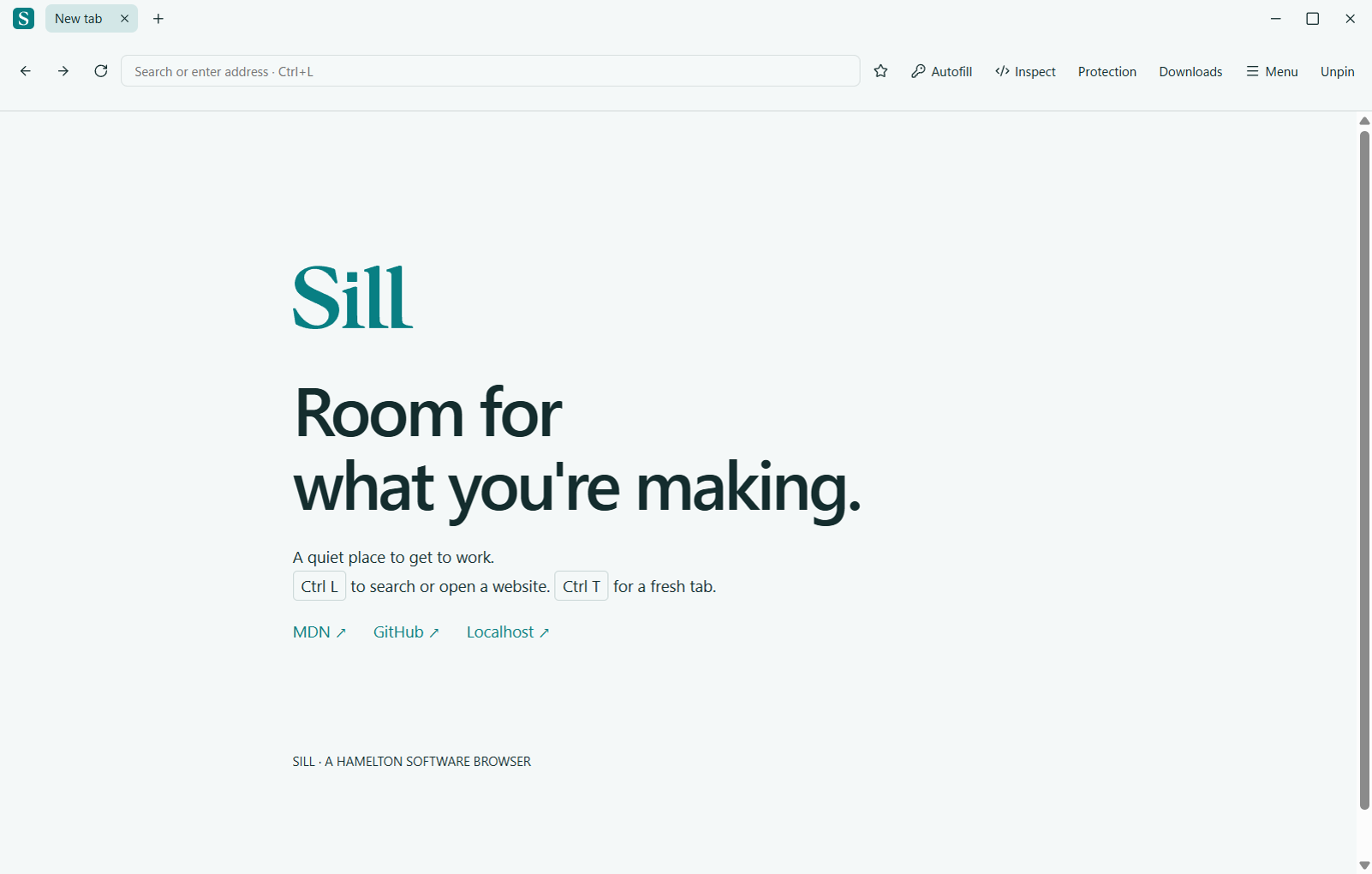
A real capture of Glide revealing, waiting, and hiding. The unpinned page stays in place.
Motion plays only when you choose. Captured in the Windows browser.
Top keeps navigation horizontal. Left and right arrange tabs vertically with readable labels. A subtle theme-colored Glide indicator stays at your chosen edge.
Hover the indicator to reveal your controls. After you leave, they hide after one, two, three or five seconds. Two seconds is the default.
Unpinned Glide keeps your page at full window size while its controls overlay the content. Pinning reserves space below the top controls, or beside left/right controls. Unpinning gives that space back.
Pin holds the controls open and keeps them clear of your page. Focused address fields, open Sill menus and tab interactions hold it open while you work. Ctrl+L brings the address bar straight to you.
For a full screen workspace, press F11 as well. Glide fills the browser window; F11 removes the Windows taskbar. The setting is saved locally for your next session.
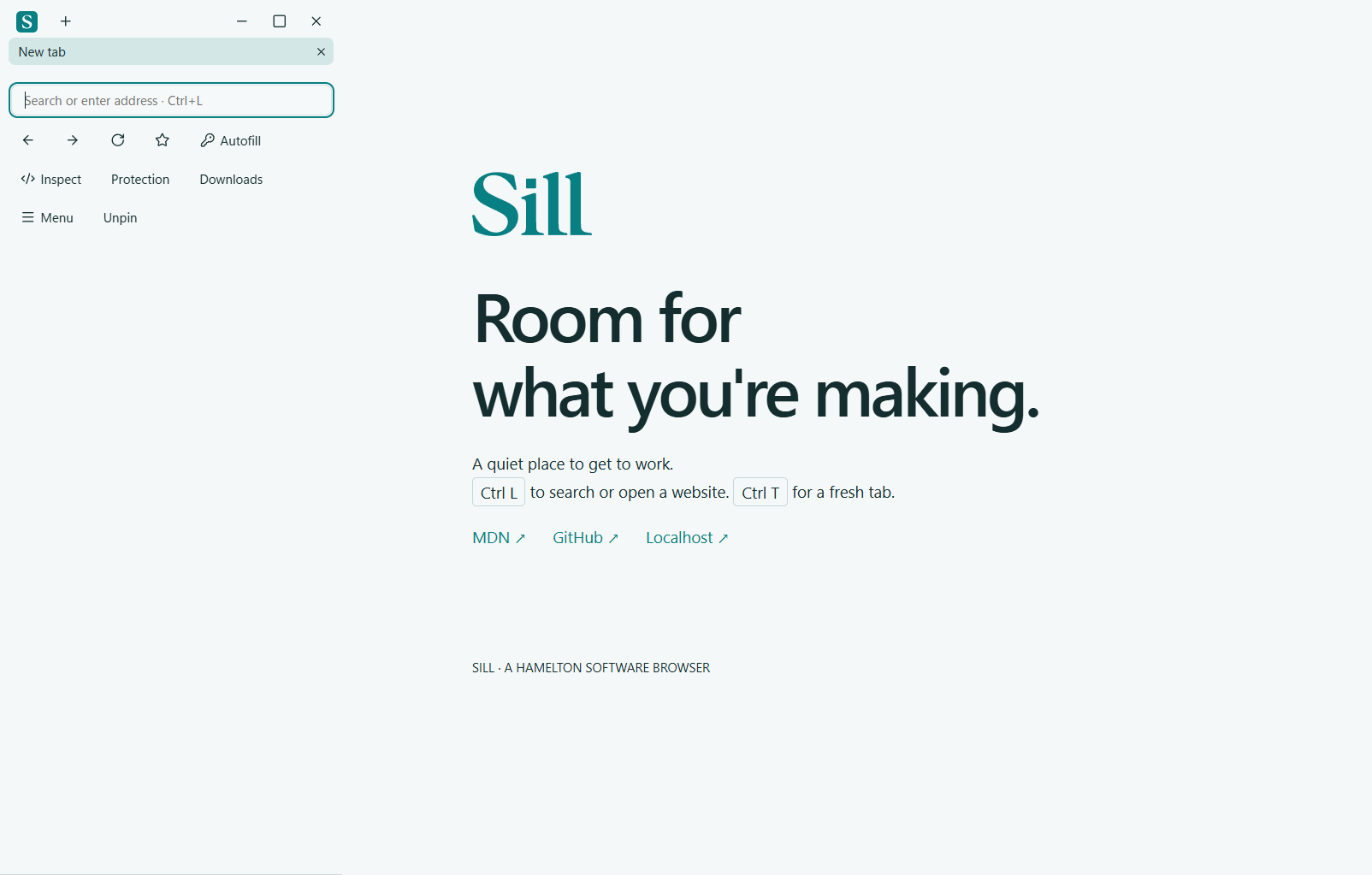
Glide is optional. Turn it off and Sill returns to its compact 72 px browser frame. Existing shortcuts, autofill, protection, developer tools and downloads remain available in either mode.
A revealed overlay covers a small part of your page until it hides. Site full-screen video, native file pickers and Inspect can have their own layouts.
Explore every Sill feature